How to Choose a Stereoscopic Display 3D Monitor
An objective buying guide for stereoscopic display 3D monitors. Explains how stereoscopic and autostereoscopic differ, what specs actually matter, and how to match a display to your workflow.
How We Chose
Editorial recommendations are organized by reader intent, workflow fit, supplied evidence, and clearly stated limitations. Product-specific details require source verification.
How to Choose a Stereoscopic Display 3D Monitor
A stereoscopic display 3D monitor is a screen that delivers separate left-eye and right-eye views so the viewer perceives depth. The category includes glasses-based designs (active shutter or polarized) and glasses-free designs (autostereoscopic). Choosing the right one depends less on marketing language and more on how the display fits your content, your software pipeline, and your viewing environment.
This guide is an objective third-party overview. It does not endorse a single vendor and does not assume touch capability, certifications, or price points that the source bundle does not confirm.
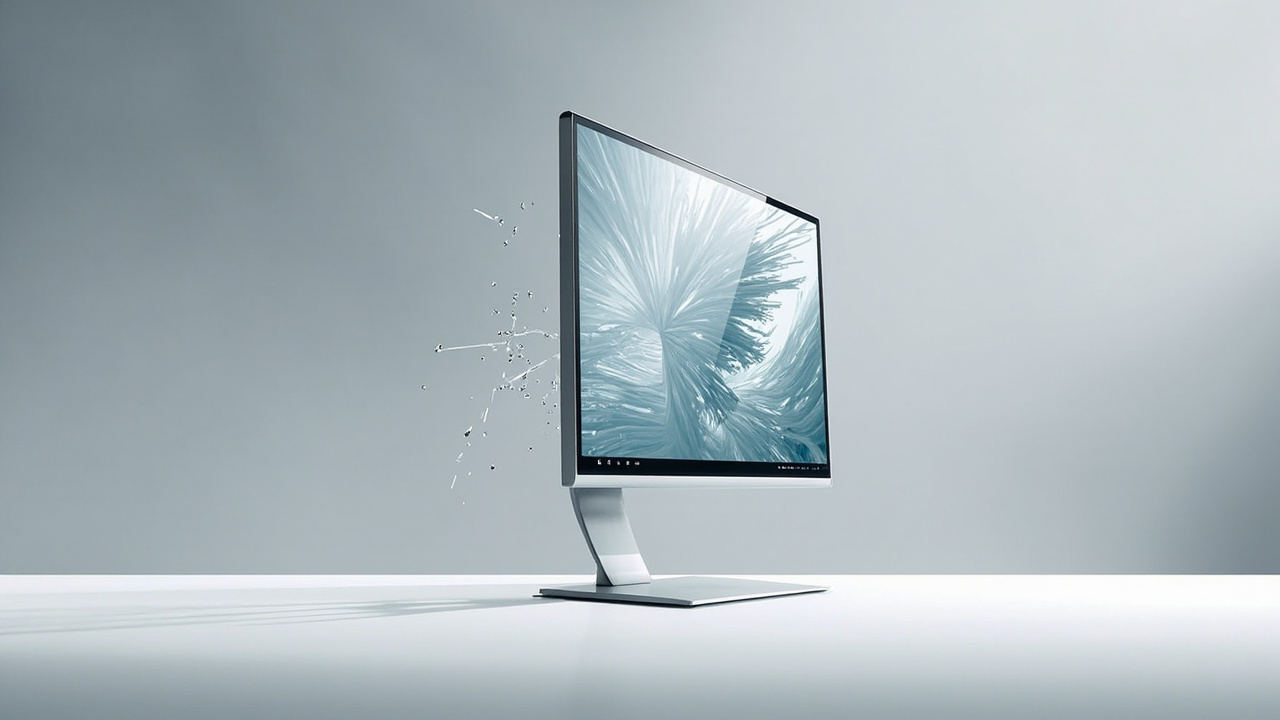
A glasses-free stereoscopic display 3D monitor rendering a depth image for a single viewer.
What a stereoscopic display 3D monitor actually is
At a basic level, a stereoscopic display sends two slightly different images to the viewer’s eyes. The brain fuses them into a single image with perceived depth. How the monitor delivers those two views is what separates the major subcategories.
The two main delivery paths are:
- Glasses-required stereoscopic monitors. These rely on active shutter glasses that alternate left/right views in sync with the display, or polarized glasses that filter simultaneously projected left/right images. Depth perception is reliable, but the viewer must wear and maintain eyewear, and the workspace must accommodate the glasses.
- Glasses-free (autostereoscopic) monitors. These use an optical layer — typically a lenticular lens array or a parallax barrier — combined with eye tracking on higher-end models, to direct left- and right-eye views to the correct positions without eyewear. Some also support a 2D/3D switch.
If you are evaluating a “stereoscopic display 3D monitor” today, the first decision is usually whether glasses are acceptable in your workflow at all.
Stereoscopic vs. autostereoscopic: why the distinction matters
The terms are related but not interchangeable, and product listings sometimes blur them.
| Aspect | Stereoscopic (glasses) | Autostereoscopic (glasses-free) |
|---|---|---|
| Eyewear required | Yes (shutter or polarized) | No |
| Typical viewing zone | Wide; depends on glasses sync | Limited sweet spot(s); eye tracking expands usable range on some models |
| Typical use | Clinical imaging pairs, simulation, established stereo pipelines | Shared review stations, demos, classrooms, headset-free collaboration |
| Comfort barrier | Glasses fatigue, hygiene, battery/charging | Head-position sensitivity; some models benefit from eye tracking |
A monitor marketed as a “stereoscopic display 3D monitor” may fall into either column. Buyers who specifically need a headset-free workflow should confirm autostereoscopic delivery rather than assume it.
Key selection criteria
The criteria below are derived from general selection logic for this category and the explainers linked throughout this article. They are not endorsements of specific spec sheets.
- Delivery method. Decide glasses vs. glasses-free first. Everything else follows from this choice.
- Viewing zone and tracking. For glasses-free units, check whether the display relies on fixed viewing zones or uses eye tracking to follow the viewer. Eye-tracked designs generally reduce the “head-locked” limitation but introduce their own calibration considerations.
- 2D/3D switching. If the same monitor will be used for daily 2D work, look for a clean 2D mode. Pro-tier glasses-free displays in this category are often marketed around flexible 2D/3D use; Essential-tier models tend to be positioned as dedicated 3D stations.
- Content input. Confirm the input formats the display accepts. Side-by-side (SBS) stereo, top-bottom/over-under stereo, and standard 2D inputs are common; some displays also accept stereo from specific graphics pipelines.
- Screen size and viewing distance. Larger screens do not automatically improve depth. The viewer’s distance from the screen determines how comfortable the depth effect feels. Buyers often choose smaller screens for single-seat review and larger screens for room-scale viewing.
- Software pipeline. A 3D-capable monitor does not automatically render 3D from any application. Confirm that your CAD, medical viewer, microscope software, or 3D engine can output the stereo format the display expects.
- Single viewer vs. multiple viewers. Most glasses-free monitors in this class are tuned for one primary viewer at a time. Multi-viewer scenarios usually require different hardware.
- Physical environment. Room lighting, reflections on the optical layer, and mounting position all affect perceived depth.
Workflow fit: matching the monitor to your use case
Different workflows put different weight on the criteria above.
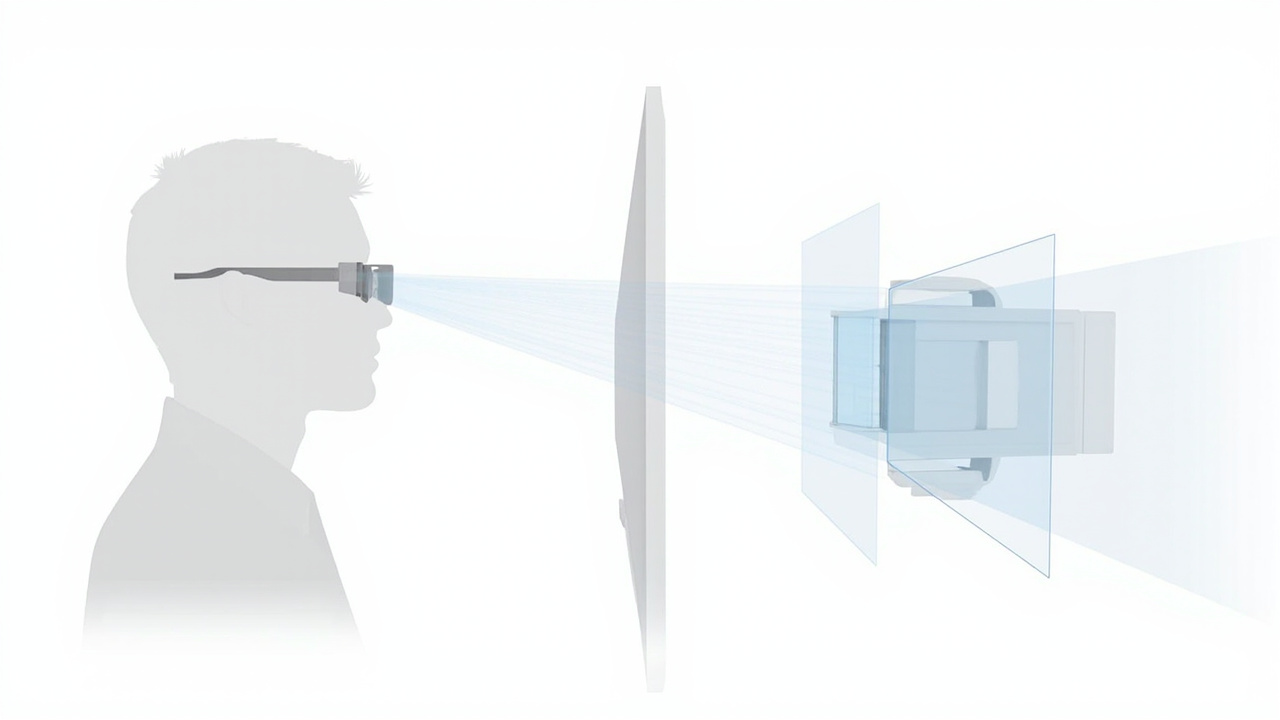
Side-by-side conceptual comparison of glasses-based and autostereoscopic delivery.
- Medical and surgical review. Teams accustomed to polarized 3D viewing often stay with glasses-based stereoscopic monitors because the workflow and content are already stereo-native. Teams that need headset-free collaboration or teaching may prefer autostereoscopic monitors with eye tracking, but should confirm DICOM and stereo export support in advance.
- Industrial inspection and NDT. Depth perception helps when reviewing CT, X-ray, or defect data. Glasses-free monitors work well for single-operator review stations; group review may favor larger displays with broader viewing zones, accepting some tradeoff in sweet-spot precision.
- CAD and design review. Mixed 2D/3D use is common. Buyers in this group typically prioritize a clean 2D mode, color accuracy for non-3D tasks, and reliable stereo output from their CAD or rendering tools.
- Microscope collaboration. Where multiple specialists need to see the same volumetric or stereo sample, glasses-free monitors can reduce the friction of shared eyewear. Single-operator deep review may still benefit from glasses-based stereoscopic setups.
- Showrooms, demos, and education. Glasses-free designs reduce onboarding friction for first-time viewers. Auto-switching between 2D signage and 3D content is a useful feature here.
Content and software compatibility
A stereoscopic display 3D monitor is only as useful as the content you can feed it. Common compatibility considerations include:
- Stereo-ready sources. Side-by-side stereo, multi-view renders, and applications with explicit stereo output typically work directly.
- Ordinary 2D sources. Flat images and standard 2D video generally display in 2D mode, even on stereoscopic monitors, unless the software can synthesize depth.
- CAD and 3D engines. Unity, Unreal, and WebGL pipelines can output stereo if configured for it. Not every viewer or game does.
- Medical and industrial viewers. DICOM and CT viewers vary in stereo export; confirm the specific viewer used in your facility.
- Custom applications. Custom 3D applications may need display-side configuration or FPGA-side processing to map views correctly, depending on the vendor.
Before committing to a monitor, run a representative sample of your actual content through it. Specifications describe capability; demonstrated behavior describes fit.
Limitations and known tradeoffs
Every category in this space has limitations worth naming directly:
- Glasses fatigue. Shutter and polarized glasses can cause discomfort during long sessions and add hygiene concerns in shared environments.
- Sweet-spot sensitivity. Glasses-free monitors without eye tracking often require the viewer to stay within a narrow zone. Eye-tracked designs mitigate but do not eliminate this.
- Resolution per eye. Because two views are delivered from one panel, perceived resolution per eye is typically lower than the panel’s headline 2D resolution.
- Content preparation. Stereo content is not always available out of the box; converting flat 2D sources to convincing stereo is rarely automatic.
- Single-viewer tuning. Most monitors in this class are optimized for one primary viewer; group viewing quality varies.
- Price-vs.-workflow mismatch. Higher-tier features (eye tracking, larger panels, flexible 2D/3D switching) help only if the workflow actually needs them.
Pre-purchase checklist and next steps
A short, practical checklist before choosing a stereoscopic display 3D monitor:
- Decide glasses vs. glasses-free.
- List the specific software you use and confirm stereo output support.
- Prepare one or two real content samples to test on the candidate monitor.
- Confirm viewing-zone behavior under your room’s lighting and seating.
- Verify 2D mode quality if the display will double as a daily monitor.
- Plan for content prep — who will produce stereo assets and how.
- Ask the vendor about demo units, return policy, and pre-purchase technical review.
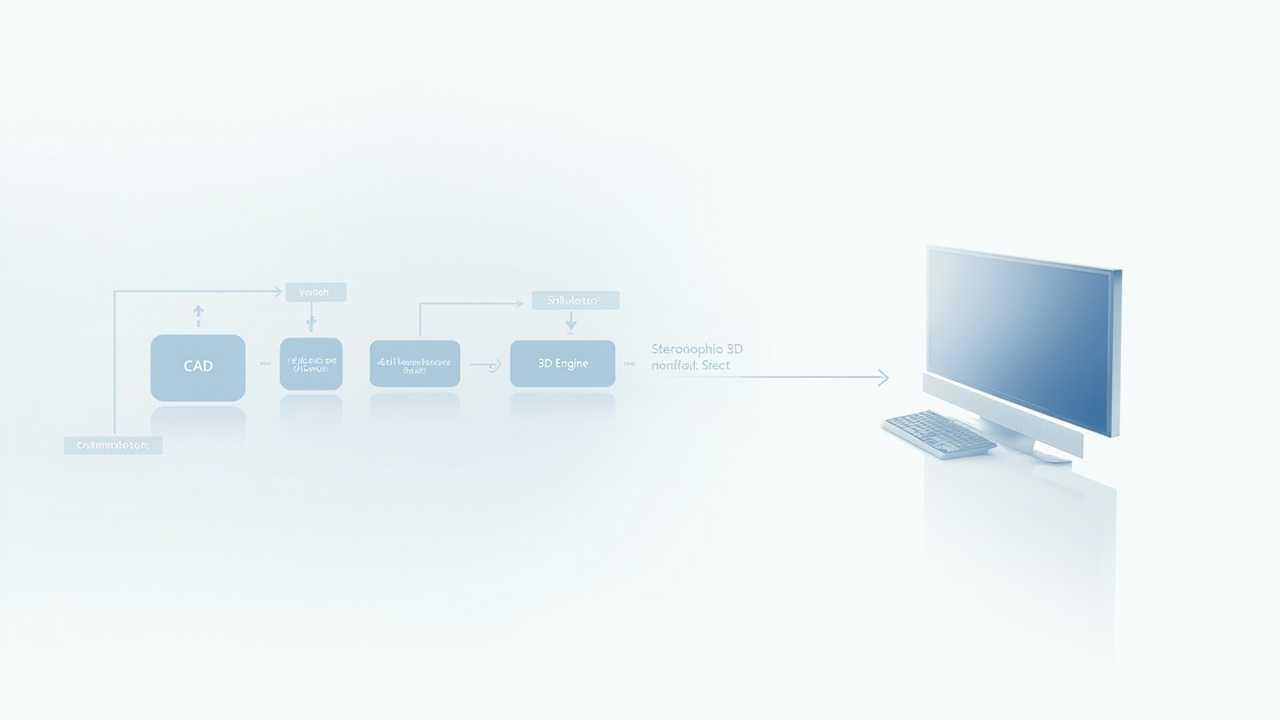
Typical content-to-display workflow with a compatibility check before the stereoscopic monitor.
For background on the underlying technologies, see the linked explainers on stereoscopic display architectures, autostereoscopic methods, and parallax barrier designs. For adjacent buying context, the spatial 3D display buying guide and the existing stereoscopic 3D monitor guide cover related selection questions.
Choosing well in this category is less about finding the “best” monitor and more about finding the one whose delivery method, content pipeline, and viewing environment match the work you actually do.
Ready to explore 3D displays?
Browse our detailed comparisons and buying guides to find the right spatial display for your workflow.
View Best 3D MonitorsDisclosure: 3DMonitor.net's best lists are editorially independent. We may earn affiliate commissions on qualifying purchases. Rankings are based on hands-on testing, specifications, and expert assessment. Full disclosure.